Special properties
Special Properties Reference
Special Property | Description | Online | Offline | Wireless |
|---|---|---|---|---|
Pass Through – aka Master | This features programs the credential to act like a ‘Pass Through’ credential. Specifically, it will either bypass a locked down Device, bypass a two-factor rule . When combined with the “Toggle Unlock” special property, the “Toggle Unlock” function for that credential will not work at Schlage devices NOTE: For the IP Bridge + MTB, this feature will provide 24/7 “always” access to doors where the User has Grant Access permissions. | X | X | X |
Toggle Unlock | When a badge is presented it will unlock devices based on the selection below. Choose All Devices, an Device Group, or a single Device. Toggle function will not work at Schlage devices for a credential that also has the Pass Through special property. | X | XE360 only | X |
Count Limit | Limits how many times a credential may be presented before being deactivated. | X | ||
Time Limit | Limits the time during which a credential will be active. The NDE, LE, XE360, CTE and Schlage RC only support credential activation and expiration time resolution down to the hour while the IP-Bridge/MTB and the Control support activation and expiration time down to the minute. This currently will cause Control & the IP Bridge to expire at a different time than the NDE, LE, XE360, CTE and Schlage RC. For example. If someone set an credential expiration time to 5:16pm, access would actually expire at 5:00pm for NDE, LE, XE360, CTE and RC, while access would expire at 5:16pm on the Control lock (aka resident Door) and an MTB+IP-Bridge combo. | X | X | X |
Force Check In | Causes the Device to check in with Zentra when the credential is presented. Note: A sync or Wi-Fi check must occur at the Device after a credential is programmed with this feature before it will work. | X | ||
ADA Relock Delay | Used to bypass the Latch interval (default is 3 seconds) of the Door to provide more time for the resident to move through the Door. | X |
*Only Time Limit special properties can be programmed via no tour. All other special properties require a sync or check in for the Device to recognize the special properties.
- Navigate toPeople > Everyone > [User]. The credential must have already been created. See Create a physical credential for more information.
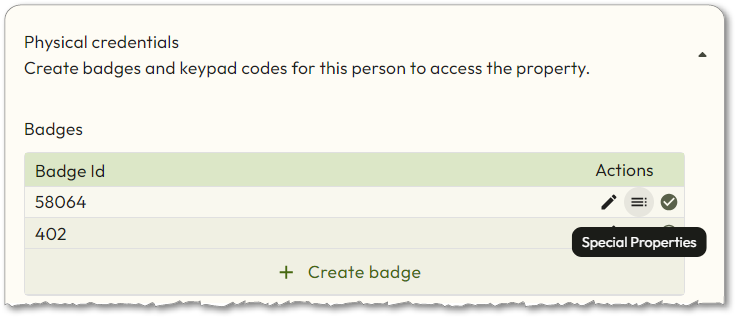
- Next to the credential you want to add the special property to, open theSpecial Propertiesmenu:Physical credential— Click theSpecial Propertiesicon.
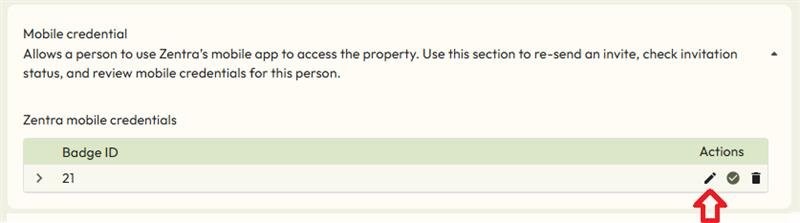
- Mobile credential— Click thePencilicon, then clickSpecial Propertiesin the menu that appears.
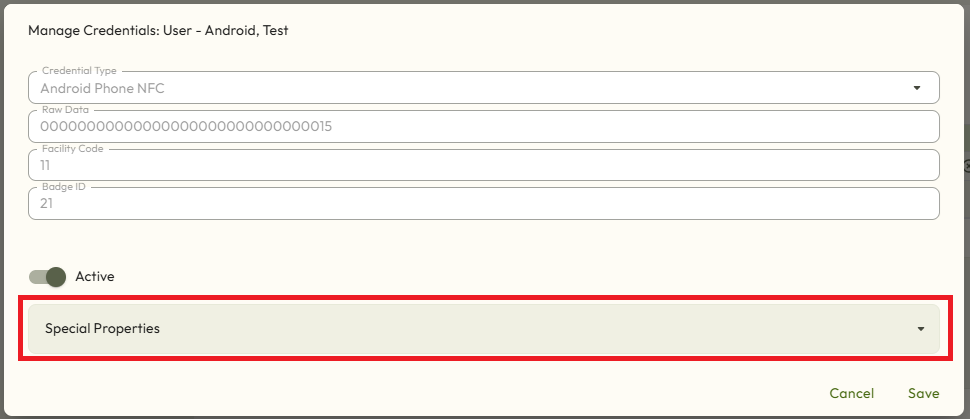
- Choose the appropriate properties by clicking
 and then sliding the toggle next to each property you want to enable. All special properties are set to Disabledby default. Some properties will have additional settings. Set each setting appropriately before continuing.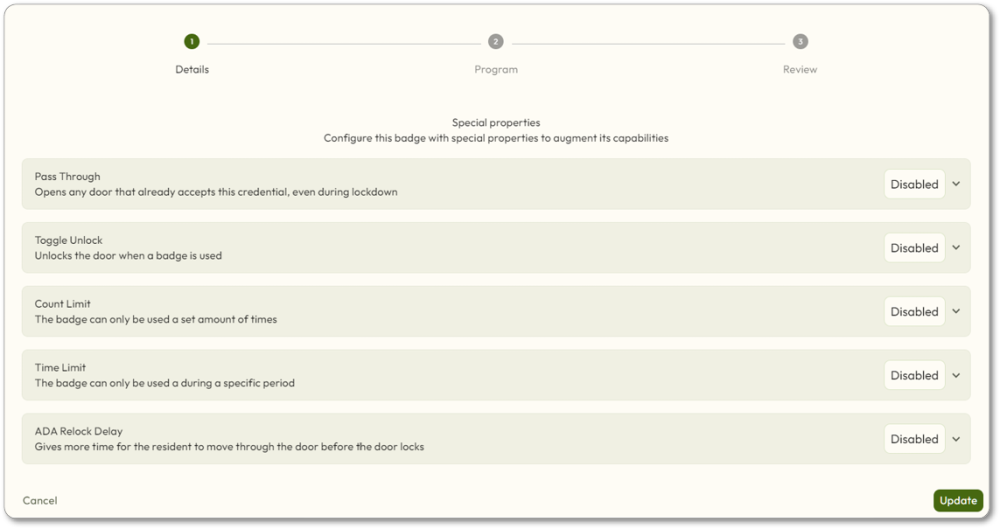
- ClickUpdate.
- TheSpecial properties updated!screen will display. ClickFinish.
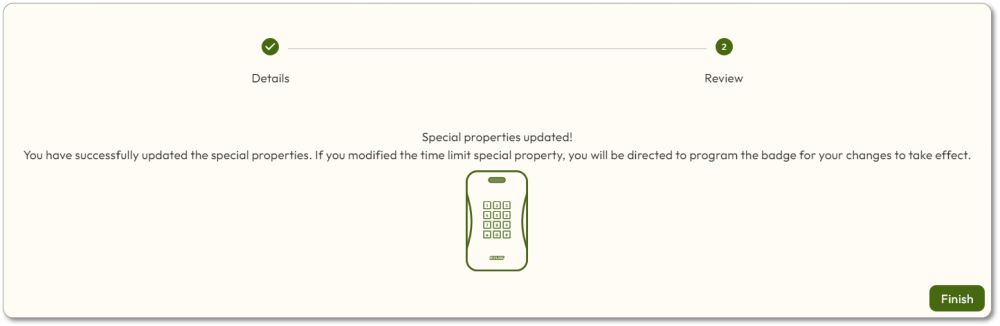
- The credential update screen will be displayed (if this was a physical credential). ClickUpdateand then present the credential to the reader.