Manage User Groups
User groups should only consist of people who should all have the same access rights. Organizing users into groups allows you to manage many users with a single group vs. managing many individual users separately.
There are several ways to change which user groups a user is included in:
Add a user(s) to a group from the
People
page- Navigate toPeople.
- Select
 next to the user you want to edit and choose Manage User Groups.
 - The user groups the user is enrolled in will be displayed.
- To change which user groups the user is enrolled in, select theUser Groupdrop down and select/deselect user groups.
- ClickSave.
Add a user(s) to a group from the User Groups page
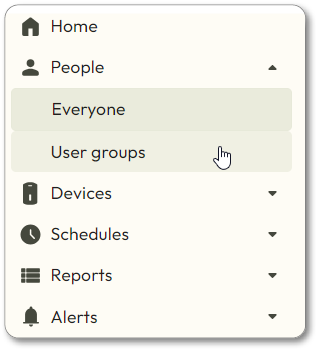
- Navigate toPeople>User groups.
- Select the pencil icon (
 ) next to the User groupyou want to edit. The edit user group view will pop up.
 - Select/Deselect user(s) from the drop-down list.
- ClickSave.
Viewing user group details
To review the weekly rules to which a user group is assigned, select the arrow to the left of the group’s name to expand additional details.