Deactivate/Activate a Vendor
You can use the
Deactivate
function to immediately disable vendor access. However, you may still need to Compile or sync an offline door using the mobile device.
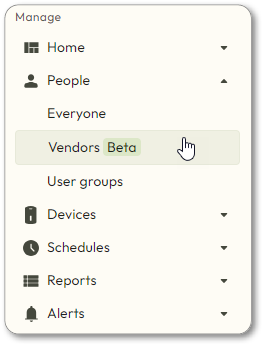
- Navigate toPeople>Vendors.
- Find the vendor you want to change. Then click
 to the right of the vendor’s name and select Deactivate vendororActivate vendor.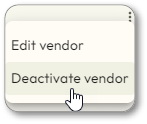

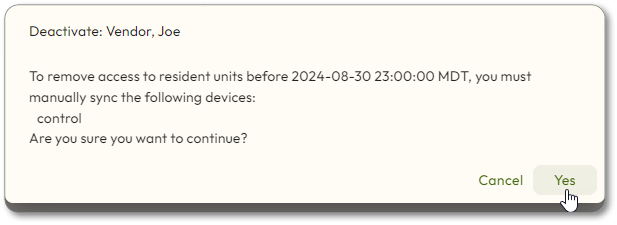
- TheDeactivate: [vendor name]screen orActivate: [vendor name]will be displayed. Verify the information, and clickYes.
- You will see the message:
 or
or

- Confirm the deactivation/activation by clicking
 next to the vendor you deactivated, and observe the
 or
or
 icon next to the credential, and DisabledorEnabledmessage on mouseover.