Widgets
Widgets are panels on a Dashboard that can be configured to show custom information at a glance. Each Dashboard can have a different set of Widgets (up to 12). Three placeholder widgets and one history Widget are displayed by default.
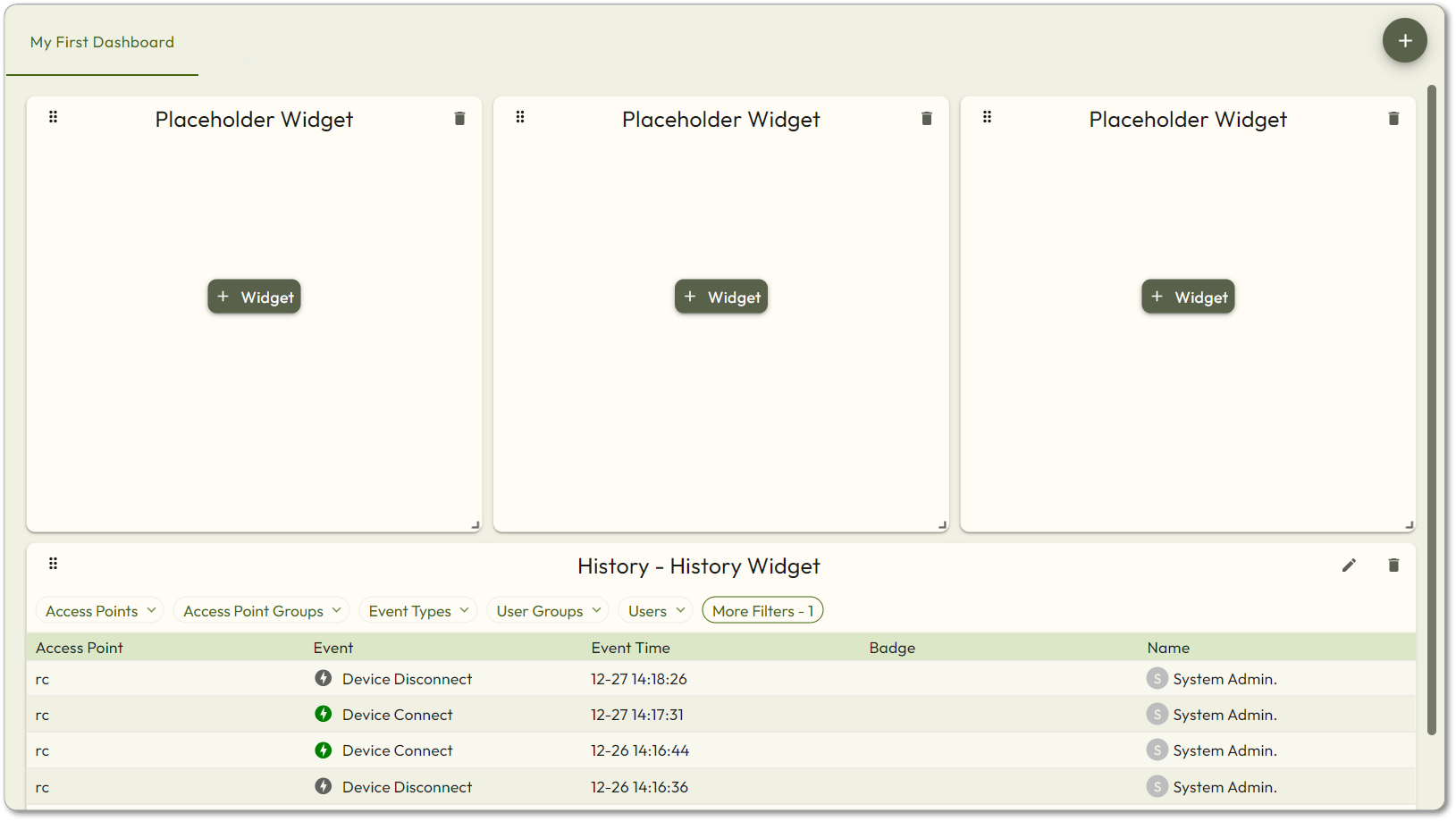
You can replace any placeholder Widget by clicking
. There are six different Widget types to choose from:+ Widget
- Single Devicesallow you to track and monitor real time activity, status as well as take actions on a single Door.
- Multiple Devicesallows you to track and monitor real time status and take actions on multiple doors (up to 12).
- Historyprovides the ability to see real-time monitoring of Devices but provides further abilities to filter to specific people, events or actions.
- Device AdmitandLockdown Devicesallow you to configure buttons to take immediate actions. The Lock Down function also allows you to reset a lockdown to its normal state.
- User Profilesallow you to view a user’s image along with the Event or activity that happened at a specific Door or group of doors.
Edit a Widget
- Widgets can be reconfigured at any time by clicking
 and changing the options.
 - The filters can also be changed to show a different subset of information.
- Click and hold the top left corner of the Widget to move the Widget to a different spot on the Dashboard.
- Click and drag the bottom left corner of the Widget to change the size.
Delete a Widget
Click  in any Widget to delete it.
in any Widget to delete it.Immediate history, as well as actions, such as Admit and lock, are only applicable for online devices.