Transfer unit
Overview
If a user is being moved to another unit, use the
Transfer unit
utility, rather than first removing exisiting access and then adding new access. Transfer unit will remove the user from one User group and add them to another user group all in one step.Steps
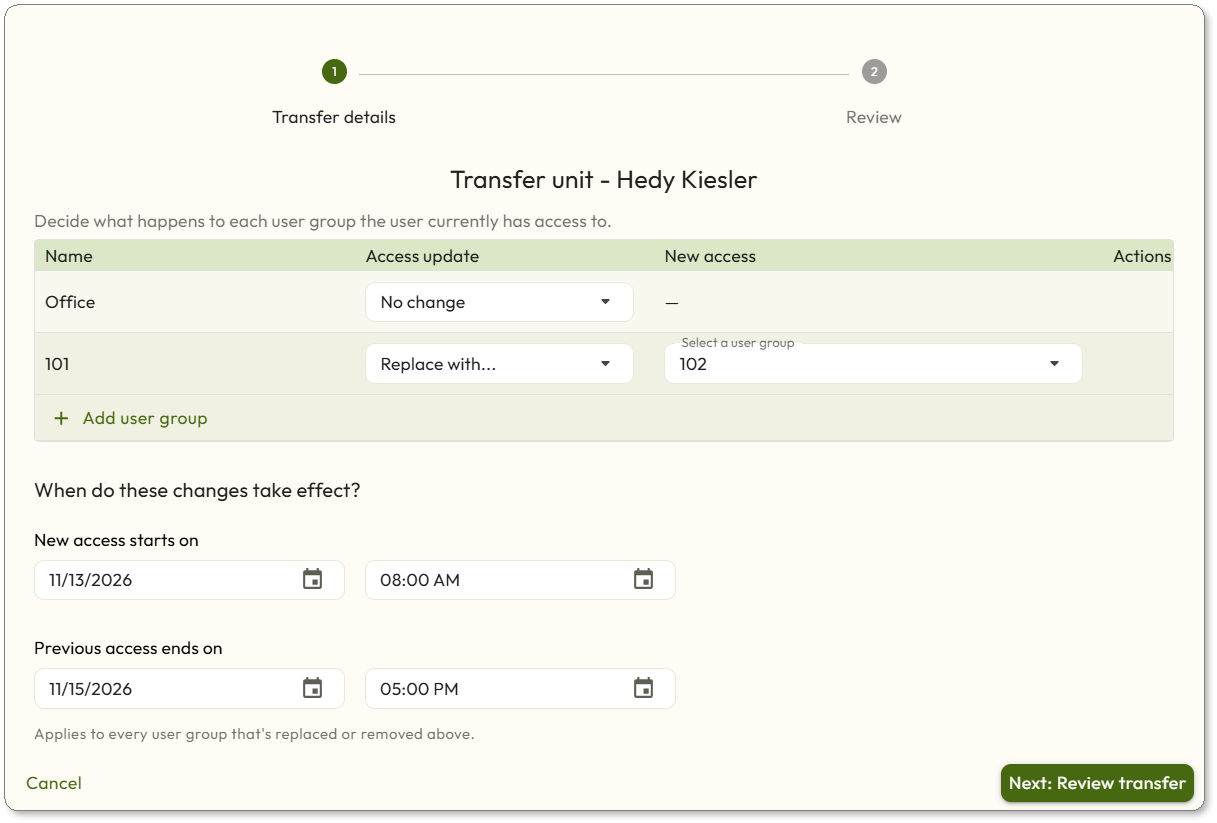
- Navigate toPeople > Everyone > [User].
- Scroll to theAssign property accesssection and click theTransfer unitbutton.
- Find the user group you want to remove the user from. Under theAccess updatecolumn, choose the action from the drop-down menu. You can make multiple changes to user access at the same time:
- No change: keeps access the same
- Replace with: removes the user from the user group and adds them to another user group
- Remove access: only removes the user from the user group
- Then, under theNew accesscolumn, select the user group you want to add the user to.
- Choose the date and time for the new access to start, and then the date and time for the previous access to end.
- This date and time may overlap, for example to give access to both units during a move.
- The date and time may have a gap, for example in student housing.
- The date and time specified will affect every change that is made at the same time.
- ClickNext: Review transfer.
- Review the transfer information. If everything is correct, clickConfirm transfer.
- If changes are necessary, clickPreviousto make changes.
- Notice theAction requiredbanner. Be sure to Syncas necessary.
- If further changes become necessary, clickEdit unit transferand make changes.
- To cancel a unit transfer, clickEdit unit transferand thenCancel unit transfer. Then, clickConfirm cancellationon the next screen.
Frequently asked questions
- How do I make changes to or cancel a unit transfer after it has been initiated?
- TheUnit transferbutton changes toEdit unit transferafter the transfer has been configured. Click the button to make any necessary changes, or to cancel the transfer.
- What happens if I need to immediately grant 24/7 access to a user while a unit transfer is pending?
- When the24/7 Access to All Devicesslider is toggled on, the unit transfer will be deactivated. Once the24/7 Access to All Devicesslider is toggled back to off, the unit transfer will be reactivated.
- The property manager is in a different time zone than the property. How do I know what time to select?
- The time in the unit transfer matches the local time at the property.
- How do I make a unit transfer start immediately?
- Set the time to a time in the past.
- What happens if another property manager tries to remove a user from the user group from the user groups screen?
- An error message will be displayed that instructs them to use the unit transfer utility instead.