Add Device
https://www.youtube.com/embed/cj7wj0FPHDE?rel=0
The
Add Device
button from the Devices
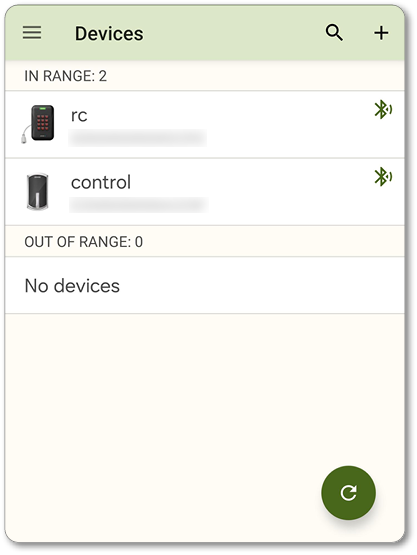
view triggers our Device commissioning process. - On theDevicestab, selectAdd Deviceon iPhone or+on Android from the top right. This tab will be visible only to users who have theDevice – Modifypermission.
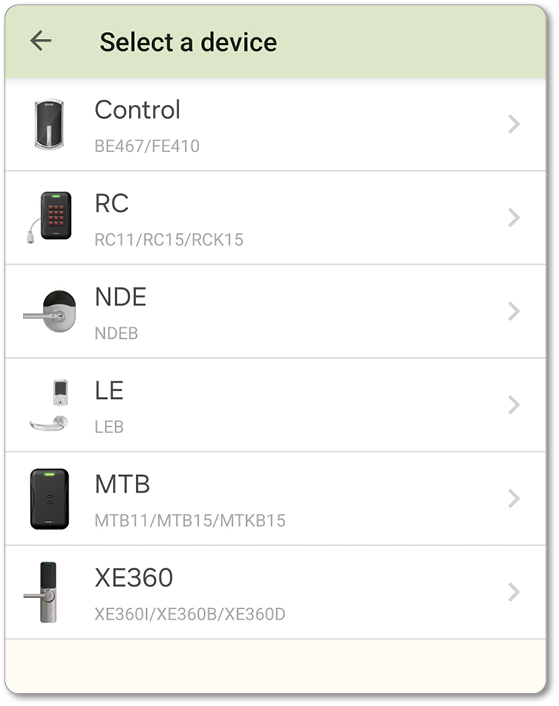
- Select the Device type to Commission. For this example, we’ll use a Control lock.
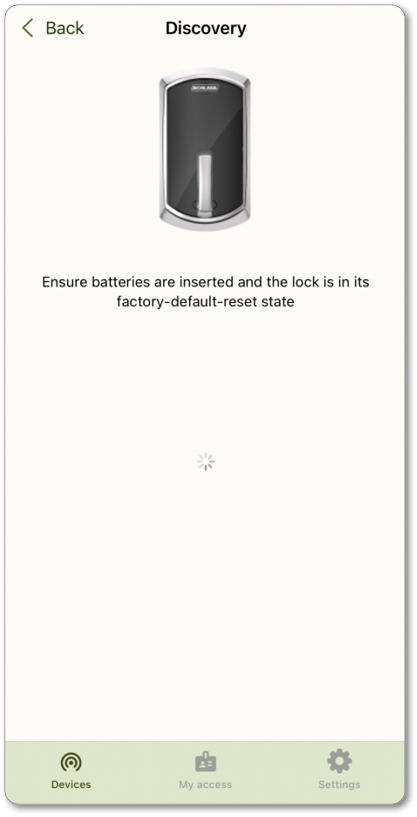
- Zentra will begin scanning for devices in range that are ready to be commissioned (devices must be in FDR mode and have power).
- Choose the Device you want to Commission from the list. In this example, there is only once Device in range.
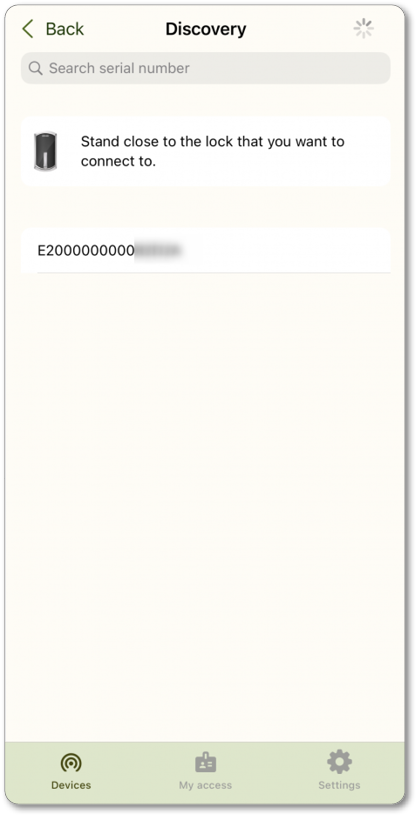
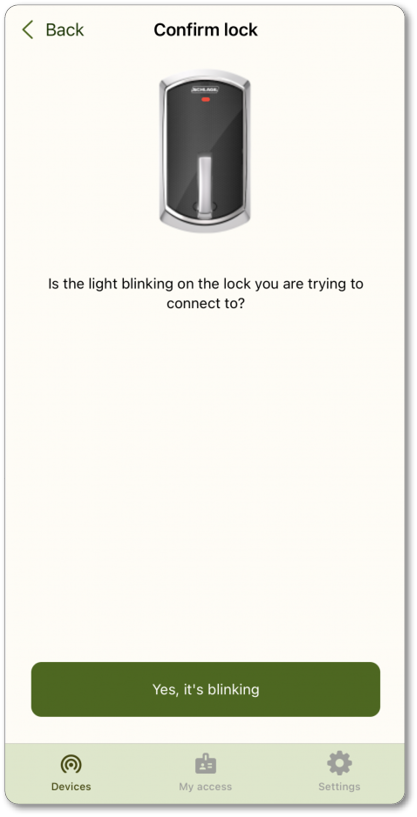
- To confirm the correct Device, the lock will flash red. Select the “Yes, it’s blinking” option.
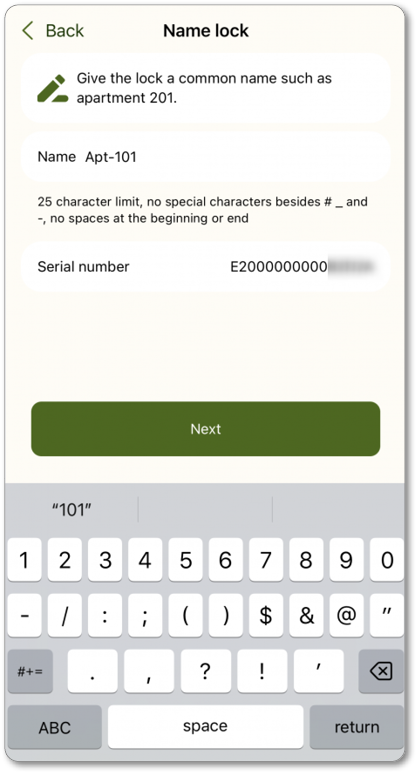
- Enter a name for the lock. If a lock was added using the web app, but not yet commissioned, it will be available as an option to select here, rather than needing to provide a name. Then, selectNext. Ensure Device names meet Zentra requirements:
- 1-20 characters (Engage allows up to 25)
- Letters, numbers, and symbols (#, -, and spaces) only
- Cannot start or end with spaces
- No special characters beyond those listed
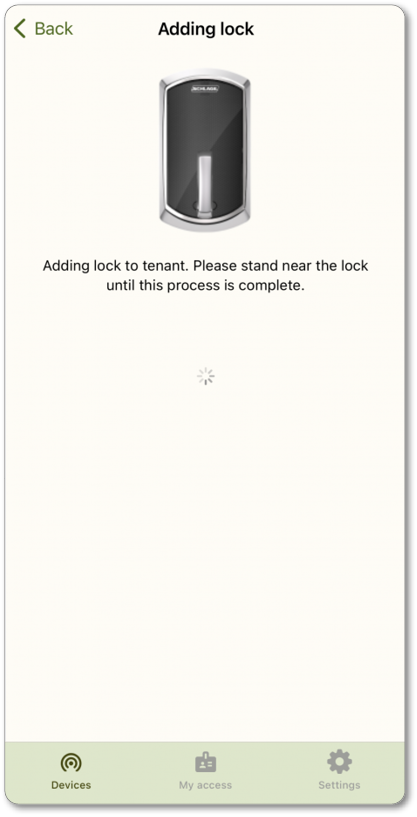
- Wait for the commissioning to complete.
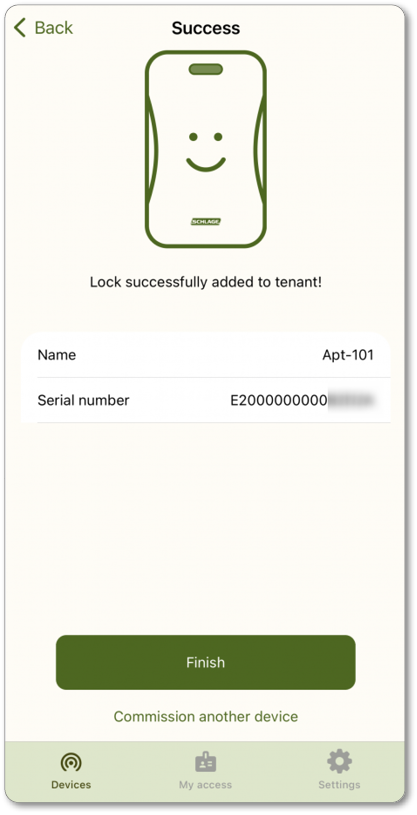
- Success! SelectFinishto return to the Device list, orCommission another Deviceto add another Device.