Device Sync and Updates
There are two ways to sync or update a Device using the Zentra mobile app, depending on the Device type and what you’d like to confirm:
- BLE Sync— Available for all offline and wireless devices. The app stays connected to the Device throughout the process to confirm the update completes successfully.
- Sync via Wi-Fi— Available for wireless devices only. The app sends a signal telling the Device to wake up and pull an update from the Zentra backend. The app stays connected to monitor the check-in as it progresses. This is also a useful way to verify that the device’s Wi-Fi settings are properly configured.
Changes to the Device settings made in the Zentra mobile app don’t take effect on the hardware until a sync is performed (via BLE or Wi-Fi)
Select the method below that applies to your situation.
- BLE Sync (All offline and wireless devices)
- Before you begin:Make sure Bluetooth is enabled on your phone and that you are within close range of the Device.
- Sign in to the Zentra mobile app.
- Select the site that contains the Device you want to sync.
- Stand close to the Device you want to update.
- Look for the Device in theIN RANGElist.
- Tap the Device to initiate pairing. Wait for thePairedicon to appear.
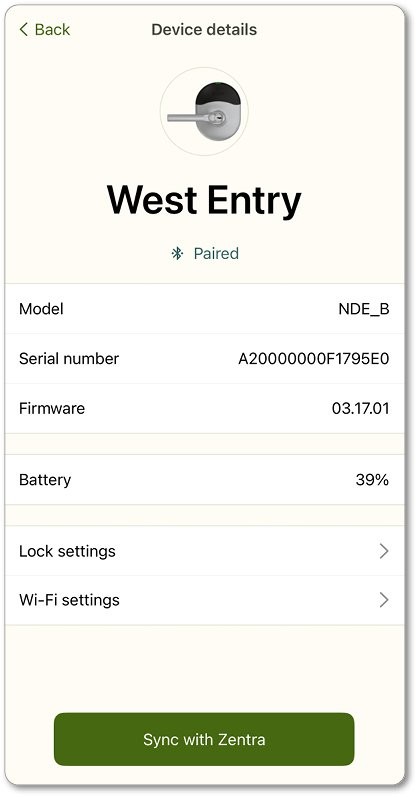
- Tap theSyncbutton. The app will remain connected to the lock while the update is applied.
- Wait for the sync to complete. A confirmation will appear when the Device has been successfully updated.
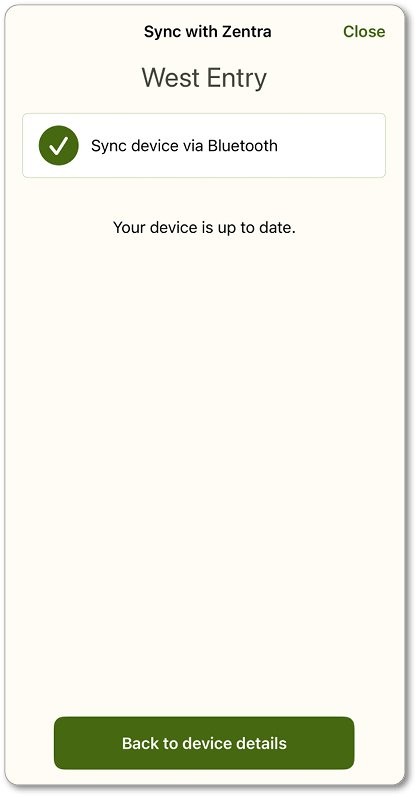
*The app stays connected to the Device during a BLE Sync. Do not move away from the Device or close the app until the sync is confirmed complete.
- Sync via Wi-Fi (Wireless devices only)
- Sync via Wi-Fi is also a reliable way to confirm that a device’s Wi-Fi settings are correctly captured — if there is a configuration issue, an error will appear on the very first step of the check-in process.Before you begin:The Device must be a Wi-Fi enabled wireless Device and within range of its configured Wi-Fi network.
- Sign in to the Zentra mobile app.
- Select the site that contains the Device you want to update.
- TapDevicesand locate the Device you are working with.
- Open the device’sWireless Settings.
- TapSync via Wi-Fito prompt the Device to wake up and connect to the Zentra backend.
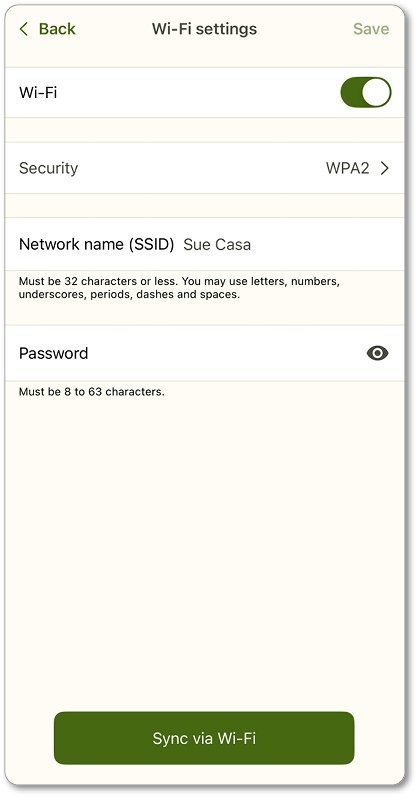
- The app will display the progress of the check-in. Monitor each step to confirm the Device connects and retrieves its update successfully.
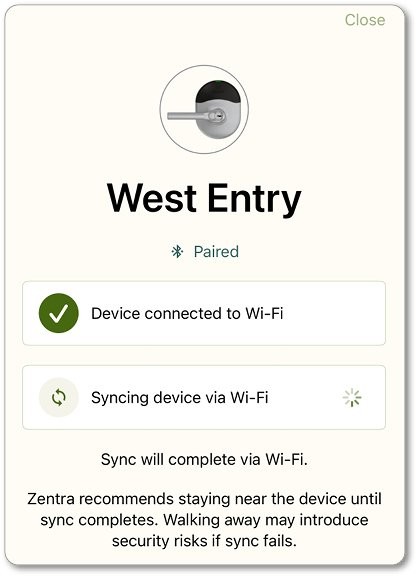
- A confirmation will appear when the check-in is complete.
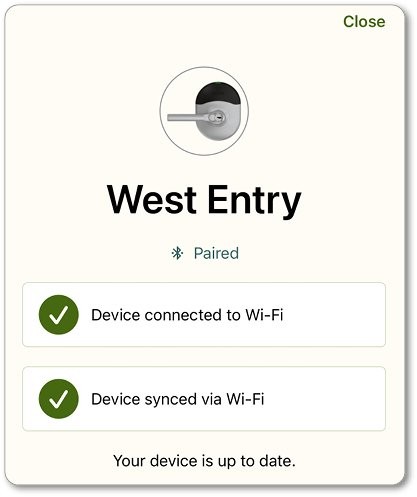
*If the device’s Wi-Fi settings are not correctly configured, an error will appear at the first step of the check-in. Use this as an opportunity to review and correct the device’s wireless settings before retrying.Wi-Fi Check-In is only available for wireless devices. It will not appear for offline (BLE-only) devices.