Enabling Enhanced Access Management
Before Enhanced Access Management can be enabled on an existing site, the appropriate settings must be active on the account. Contact your Zentra representative if you do not see the Enhanced Access Management toggle under Global Settings.
This action cannot be undone! Review all information before enabling this feature!
Only existing sites will need to have this feature enabled. Future sites will have this feature enabled by default.
System Constraints
The site must pass two checks before migration can proceed:
- Time Range CombinationsThe site must have 16 or fewer unique time range combinations.
- If the site has 16 or more schedules, the system will display an error and migration will not begin. Property management must consolidate schedules before retrying. Review schedules, user groups, and device groups for opportunities to combine. Check whether custom rules are generating excessive schedule entries.
- Device Rule AssignmentsNo individual device can be assigned to more than 16 rules with different Group IDs.
- If any device exceeds this limit, the system will block migration and display which devices are over-assigned. Property Staff must reduce rule assignments on those devices before retrying. Review schedules, user groups, and device groups for consolidation opportunities. Check whether custom rules are creating too many assignments.
Enable Enhanced Access Management
- Navigate to Global Settings.
- Click to toggle theslider.Enhanced Access Management
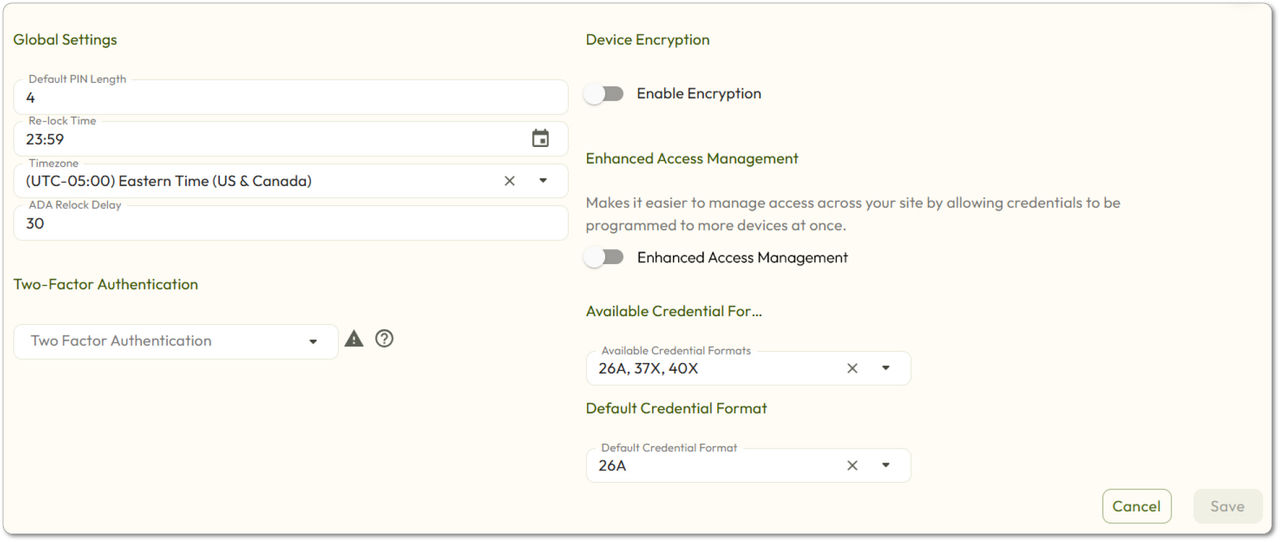
- A confirmation dialog will appear. Review the information carefully. Click.Enable Enhanced Access Management
Migration State
If the site passes all checks, migration begins automatically. The system enters migration state.
- A green confirmation message appears at the bottom of the screen.
- A 24/7 schedule is automatically generated for all devices going forward.
- A migration banner appears in Global Settings and programming flows showing:Enhanced Access Management - Migration in Progress. The number of devices that require sync will be shown.
- The Enhanced Access Management toggle becomes grayed out. It cannot be turned off once enabled.
Device Sync Requirement
All offline devices will display a red pending indicator  . Click
  next to the device to see details.
. Click next to the device to see details. Sync for Enhanced Access Management
will be displayed.All devices must be synced via the Zentra Mobile App (MAPP). This is required so that each lock can read the updated programming design.
- Track sync progress on the Device page using the Sync icon, or by running the Sync Report.
- Devices sync over BLE or Wi-Fi over time. The counter in the migration banner updates as each device completes.
Credential programming and day-to-day use continue as normal during this process. No action from residents or property managers is required.
The sync progress bar remains visible during programming flows and updates as devices are synced.
Completing Migration
When all devices have been synced, the system activates automatically and the migration banner disappears. The next programming cycle will use the new programming design.
No history event is generated when migration completes automatically.